How to get your Flume API keys
Barranca Verde connects to your Flume water monitor using your own Flume API credentials — a Client ID and Client Secret you generate in the Flume portal. It takes about two minutes. Here's the whole process.
You'll also enter your Flume account email and password in Barranca Verde — Flume requires both alongside the API keys. Your password is used once to obtain an access token and is never stored. Why do we need your password? →
-
1
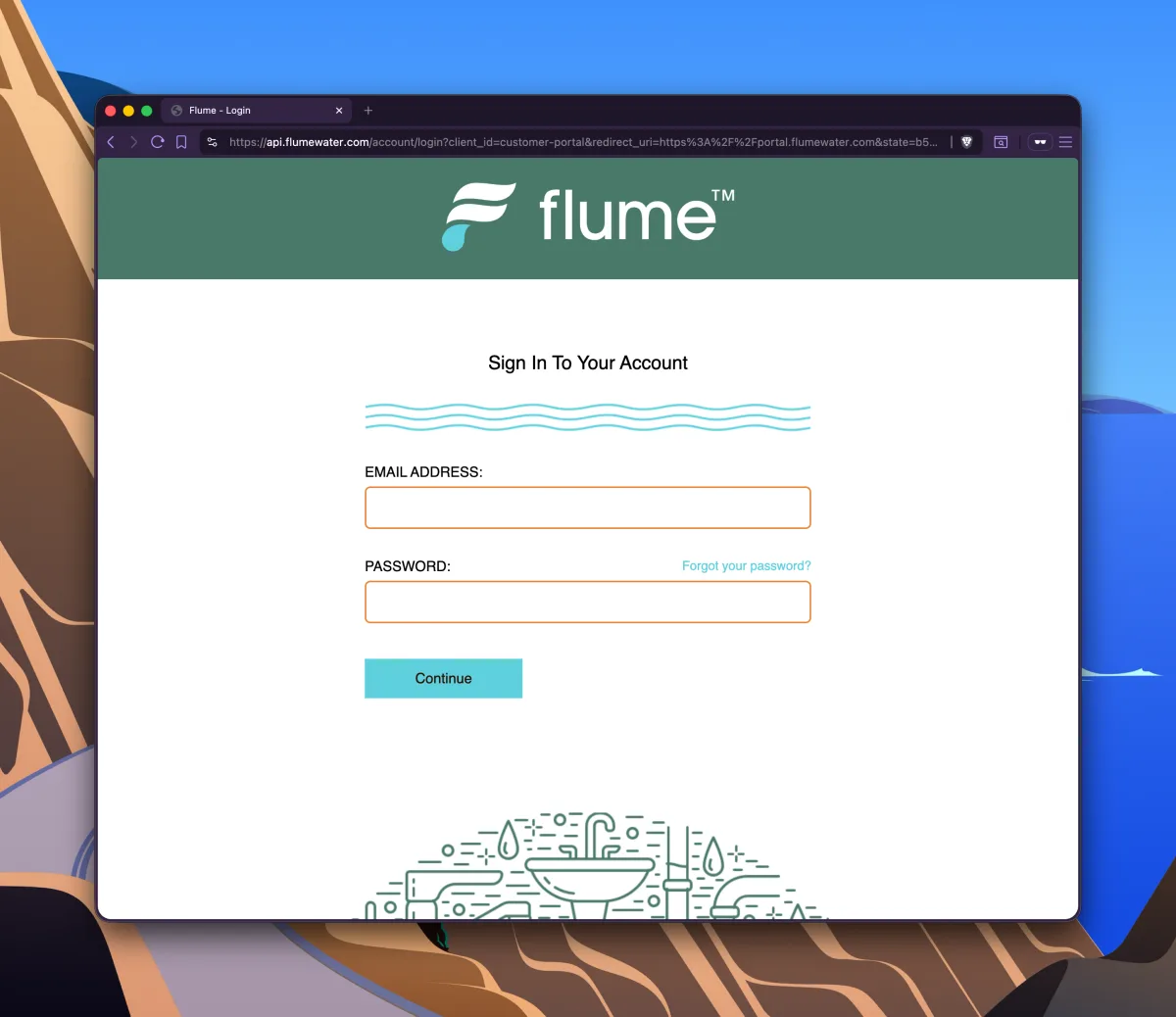
Sign in to the Flume portal
Go to portal.flumewater.com and sign in with the email and password for your Flume account (the same login you use in the Flume mobile app).
-
2
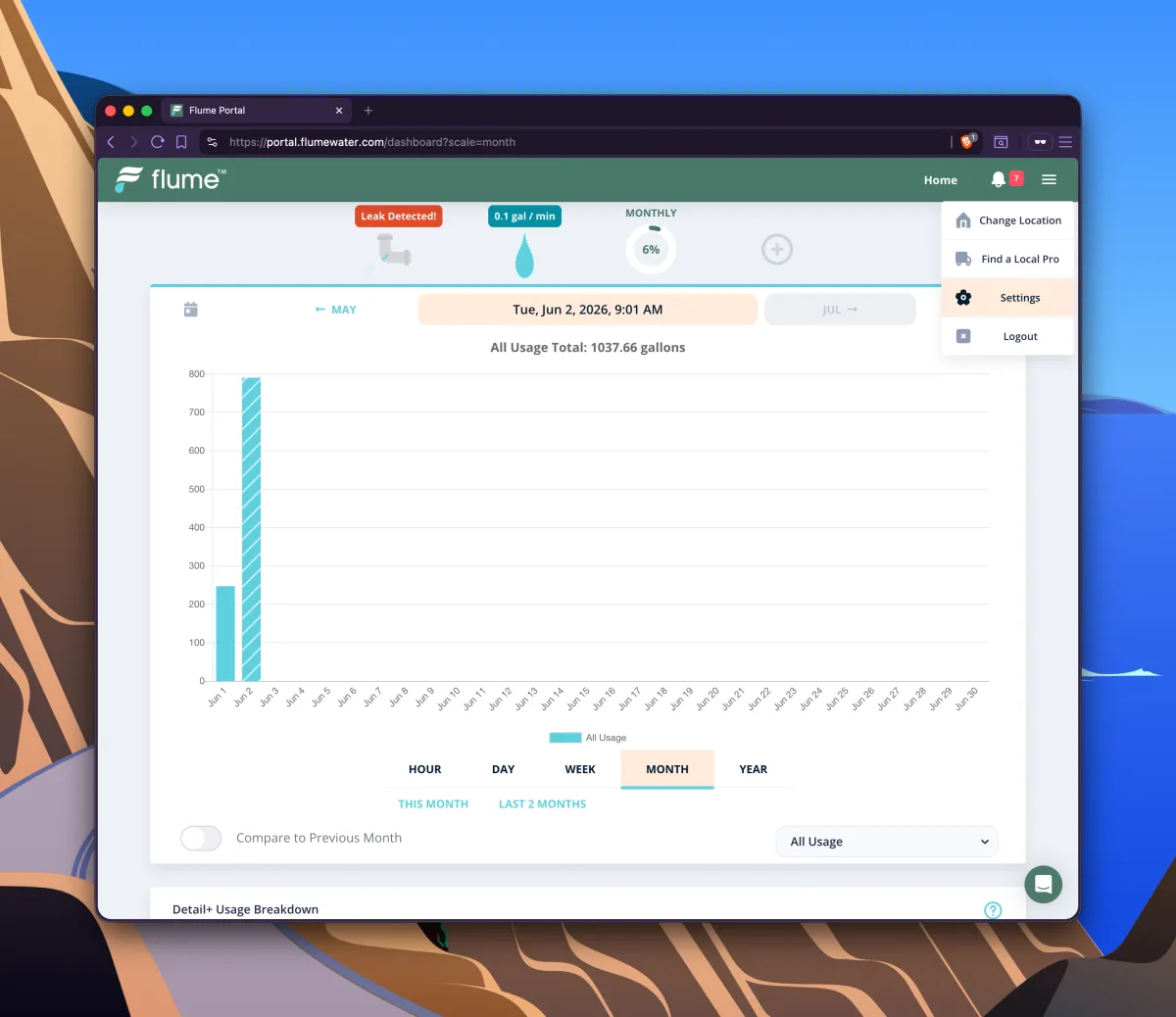
Open Settings
Once you're in, click the menu (☰) in the top-right corner and choose Settings.
-
3
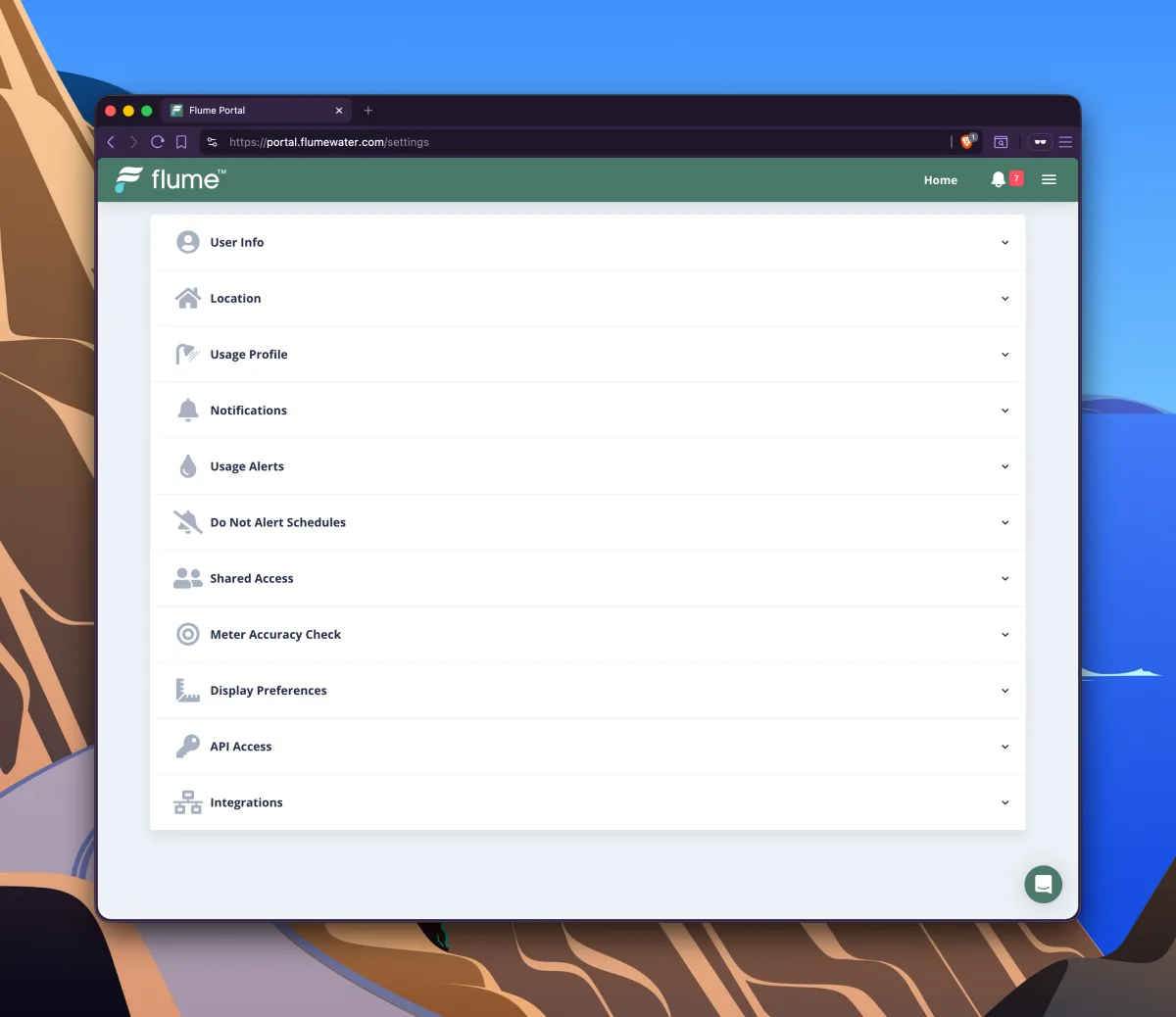
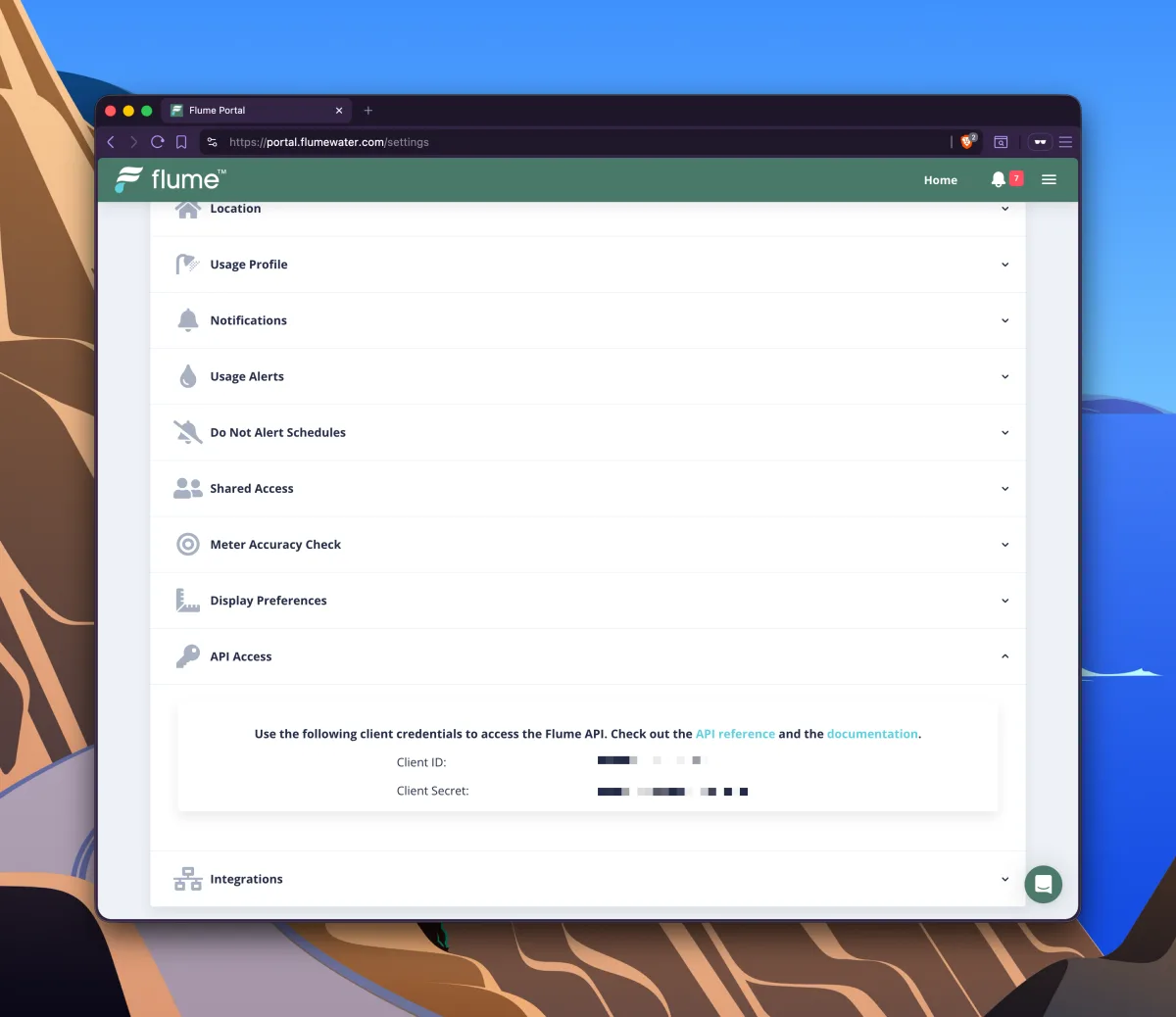
Open “API Access”
On the Settings page, scroll down to the API Access section and click to expand it.
-
4
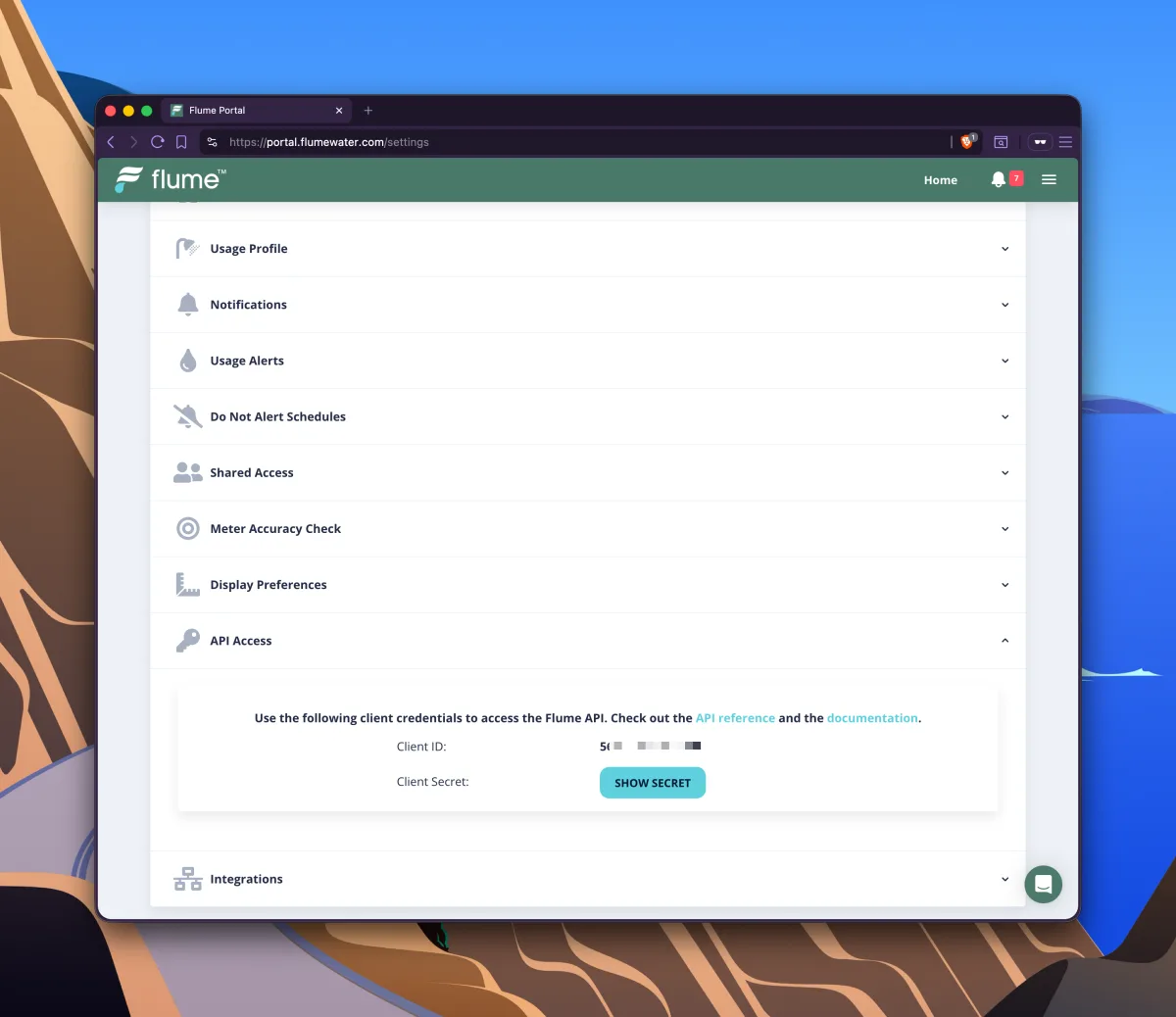
Reveal your Client Secret
API Access shows your Client ID right away. Click Show Secret to reveal your Client Secret.
-
5
Copy both credentials
Copy your Client ID and Client Secret. You'll paste both into Barranca Verde's Flume connection screen, along with your Flume email and password.
That's it — you're ready to connect
Paste your Client ID, Client Secret, and Flume login into Barranca Verde to start tracking per-zone water use.
Connect Flume